Combining several PDF files into one document is a common task, whether you are assembling a report from separate chapters, compiling receipts for expense tracking, or merging scanned pages into one file. Most online PDF mergers require you to upload your documents to a remote server, which raises real privacy concerns when the files are contracts, medical records, financial statements, or other sensitive information.
The Merge PDF tool on OnlineToolHubs processes your files in your browser. Your PDFs never leave your device, there is no server-side processing, and nothing is retained, logged, or leaked. This guide covers how PDF merging works, why browser-based processing matters for privacy, and how to combine your PDFs in seconds.
What Does “Merge PDF” Mean?
Merging PDFs means combining two or more separate PDF files into one document. The pages from each file are joined in the order you specify, which gives you a single file that you can share, print, or archive.
Common scenarios include:
- Business: Combining a cover page, proposal, and appendix into one submission
- Legal: Assembling signed pages with the main contract
- Academic: Merging research sections into a complete paper
- Personal: Combining scanned receipts for tax filing
- Job applications: Merging a resume, cover letter, and portfolio into one PDF
Why Browser-Based PDF Merging Matters
Most online PDF tools, including popular ones, work by uploading your files to their servers, processing them remotely, and letting you download the result. Their privacy policies typically say they delete your files “within a few hours,” but:
- You have no way to verify that deletion actually happens
- Your files pass through their network infrastructure during upload
- The retention policy sits in terms of service most people never read
- For legal, medical, or financial documents, this is a genuine risk
The OnlineToolHubs Merge PDF tool avoids the problem. The JavaScript code runs in your browser, processes the PDFs using your device’s CPU and memory, and generates the merged file locally. There is no upload step, so there is nothing to worry about.
How to Merge PDFs: Step-by-Step
Step 1: Open the Tool
Go to the Merge PDF tool on OnlineToolHubs. No account or signup needed.
Step 2: Add Your PDF Files
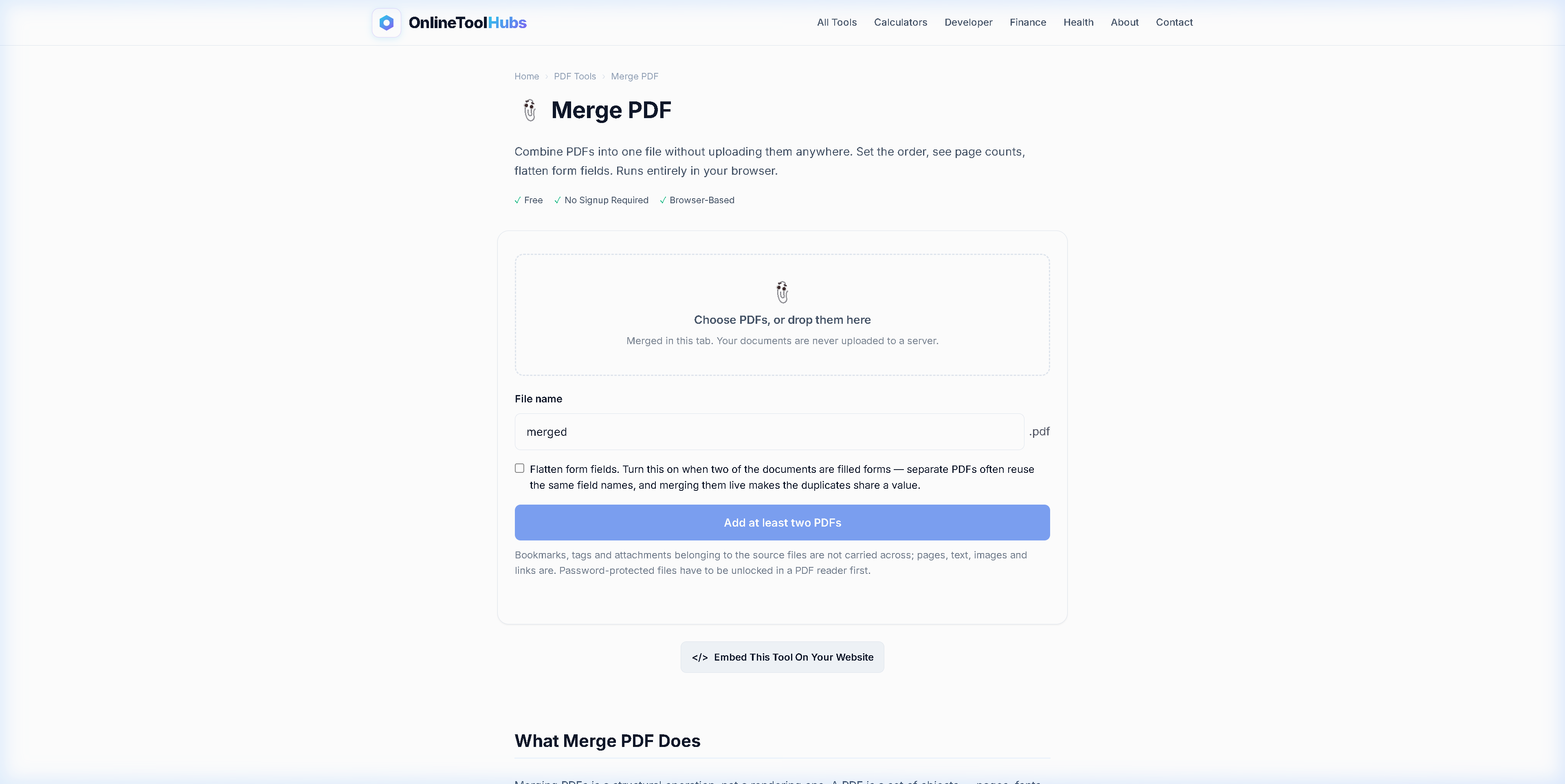
Drag and drop your PDF files into the upload area, or click to browse your file system. You can add as many files as you need.
Step 3: Reorder if Needed
Drag the files into the order you want them to appear in the final merged document. The first file in the list becomes the first pages of the output.
Step 4: Click Merge
Click the Merge button. The tool combines all your PDFs into a single file and starts the download automatically. All of it happens in your browser.
Merge PDF: Online Tool vs. Desktop Software vs. Command Line
| Feature | OnlineToolHubs | Adobe Acrobat Pro | pdftk (CLI) |
|---|---|---|---|
| Free | ✅ Completely | ❌ $239.88/year | ✅ Free |
| No install | ✅ Browser-based | ❌ Must install | ❌ Must install |
| No upload | ✅ Client-side | ✅ Local processing | ✅ Local |
| Drag & reorder | ✅ Visual UI | ✅ Visual UI | ❌ CLI flags |
| Works on mobile | ✅ Responsive | ❌ Desktop only | ❌ Terminal only |
| No account | ✅ | ❌ Adobe ID required | ✅ |
| Batch processing | ✅ Multiple files | ✅ | ✅ |
Tips for Merging PDFs Effectively
-
Name your files clearly before merging so you can tell them apart in the reorder step (e.g.,
01-cover.pdf,02-introduction.pdf,03-body.pdf). -
Check page orientation. If some PDFs are landscape and others are portrait, the merged file keeps each page’s original orientation.
-
Verify the merged result. Open the downloaded file and scroll through to make sure all pages are present and in the correct order.
-
Compress after merging. If the merged file is too large, use the Compress PDF tool (it also runs in the browser) to reduce the file size.
-
Add page numbers. The PDF Page Numbers tool adds sequential page numbering to your merged document.
Related PDF Tools on OnlineToolHubs
If you work with PDFs regularly, OnlineToolHubs has a set of browser-based PDF tools:
| Tool | What It Does | Link |
|---|---|---|
| Split PDF | Extract specific pages from a PDF | Split PDF |
| Compress PDF | Reduce PDF file size | Compress PDF |
| Rotate PDF | Rotate pages within a PDF | Rotate PDF |
| PDF to JPG | Convert PDF pages to images | PDF to JPG |
| JPG to PDF | Convert images to PDF | JPG to PDF |
| Watermark PDF | Add text watermarks to PDFs | Watermark PDF |
| Add Page Numbers | Number the pages of a PDF | Page Numbers |
| PDF to Text | Extract text content from PDFs | PDF to Text |
All of these run in your browser with no file uploads.
Try the Merge PDF Tool Now: Free, No Signup Required
You don’t need to pay for Adobe Acrobat or trust unknown servers with your documents. You can combine your PDFs securely in your own browser.
Merge PDF Files Free on OnlineToolHubs. No account needed, no upload, and your files never leave your device.
Frequently Asked Questions
How do I merge PDF files online for free?
Go to the Merge PDF tool on OnlineToolHubs, drag and drop your PDF files, reorder them if needed, and click Merge. The combined PDF downloads instantly. No account or signup required.
Is it safe to merge PDFs online?
The Merge PDF tool on OnlineToolHubs runs entirely in your browser, so your files never leave your device. Unlike most online tools, there is no server upload involved.
Can I rearrange pages before merging PDFs?
Yes. Drag the files into the order you want them to appear in the final document before clicking Merge.
What is the file size limit for merging PDFs?
Since the tool runs locally in your browser, the limit depends on your device’s available memory. Most modern devices handle dozens of PDFs without any issue.
This article is general information, not financial, investment, tax or legal advice. Your situation is your own, so check with a qualified professional before you act on it. See our disclaimer.